Posts

Showing posts with the label gnome-terminal

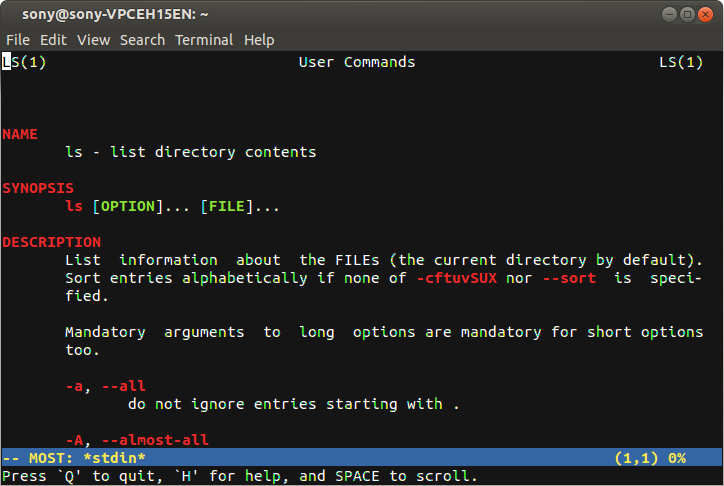
Coloured man pages!

Image
Are you bored from viewing monochrome(black & white) man pages?  Let's make the world a little bit colorful. coloured man page Colored man pages allow for a clearer presentation and easier digestion of the content. Let's see how to do it. Method 1: Open a terminal and type the following codes: sudo apt-get install most export PAGER="most" That's it now open your favorite man pages   and you will be awestruck to see colored man pages. Method 2:  This method has the advantage that  less  has a bigger feature set than  most , and is the default for viewing man pages. Add the following to a shell configuration file. All that needs to be done is to export bold and underline values of termcap. Adding the values to the  ~/.bashrc  will make sure that they are always used: # Less Colors for Man Pages export LESS_TERMCAP_mb=$'\E[01;31m' # begin blinking export LESS_TERMCAP_md=$'\E[01;38;5;74m' # begin bold export LESS_TERMCAP_me=$'\E[0m'...

Make searching history in terminal easier

PROBLEM: This might not be a problem but a feature . But I want to mention this here. Some times while using the terminal you might know a command which is very big and you've already used it before.  That means it's in the terminal history and you want to use it. It is really irritating to hold the up arrow ( ↑) until you find it. So, here's an useful feature that allows you to search the history just by typing the first few letters of your command in the terminal. Let me illustrate what we want to achieve using an example.  sudo -s ls man sudo If I want to use  sudo -s I have to press  ↑ three times. Instead of that I can use it by typing S and pressing ↑. Let's see how to do it. SOLUTION: Open a terminal and type the following: gedit ~/.inputrc ## arrow up "\e[A":history-search-backward ## arrow down "\e[B":history-search-forward Now we can search easily in the terminal.